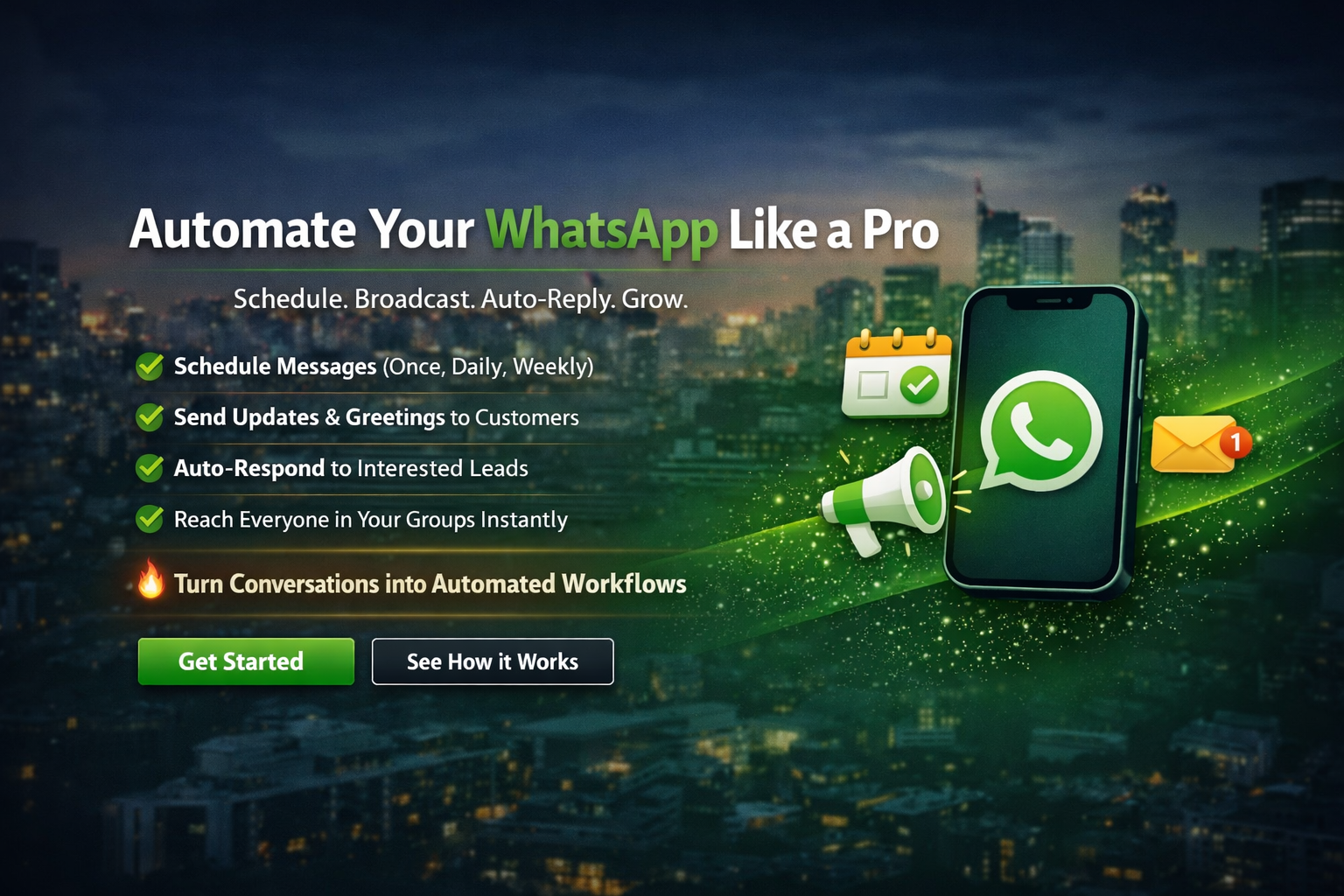
🚀 WHAT YOU CAN DO WITH CODEBOT
Customer stories
How Our Customers use codeBot
Customer stories will appear here soon.
CodeBot WhatsApp Automation Platform
Turn conversations into automated workflows, scheduled campaigns, and reliable follow-up from one polished workspace.
CodeBot helps businesses connect WhatsApp, create reusable tasks, manage credits, and keep their workspace ready whenever they return. New users receive 150 starter credits—enough for many teams to test and stretch usage for months, and for lighter use cases it can last up to a year.
150credits awarded
24/7persistent browser sessions
1workspace for tasks and WhatsApp
What you can do
About the product
CodeBot is built for founders, growth teams, agencies, and operations teams who want dependable WhatsApp automation without managing a complicated tool chain.
- Plan outreach and recurring operational tasks.
- Track whether your WhatsApp connection is available.
- Manage credits and usage from a single account.
- Scale from testing to production-ready messaging workflows.
How it works
Three simple steps
- Create your account and receive your free 150 credits.
- Open the dashboard, connect WhatsApp, and confirm the saved connection state.
- Go to the task page to create automation tasks, campaigns, reminders, or team workflows.
About the company
CodeIgnite services
CodeIgnite builds practical automation software focused on reliable messaging, workflow orchestration, onboarding experience, and customer engagement.
- WhatsApp automation services.
- Workflow consulting and setup support.
- Credit-based SaaS products for growing businesses.
- Product and integration delivery for digital teams.
Why sign up now
Convincing value for new users
If you are exploring automation for the first time, CodeBot gives you enough room to learn, test, and launch. The 150-credit welcome package is designed to help you validate your workflow before you scale.
For low-volume reminders, personal business follow-up, and pilot campaigns, those starter credits can last a very long time—often months, and in light-use scenarios potentially up to a year.
Ready to build?
Create your first automation task in minutes.
Sign up, connect WhatsApp, and move directly into a task workspace built for action.
Welcome back
Login to your CodeBot account
Stay signed in on this browser, manage your profile, and jump into a workspace whenever you are ready.
Get started
Create your CodeBot account
Create your account first, then decide later if you want to create a workspace for WhatsApp automation and team collaboration.
Command center
Run your WhatsApp workspace with confidence
Manage your account first, then create a workspace only when you are ready to run WhatsApp automation and invite teammates.
Available credits
0
Updated as you create tasks and use AI tools.
Account owner
-
-
Theme mode
Light
Instantly synced across this session.
Workspace signal
No workspace yet.
Create a workspace when you want shared automation, WhatsApp setup, and team access.
Step 2
Connect WhatsApp and continue to your workspace
After login, this is your only stop. Scan the QR code, connect your WhatsApp account, and you will be taken straight to the workspace where you can manage company portfolio, audience, scheduling, payments, teammates, and task monitoring.
Connect your WhatsApp account to generate a QR code and save the session state.
Scanner friendly
High-contrast QR code
QR code will appear here after you start the connection.
- Use WhatsApp on your phone: Settings → Linked Devices → Link a device.
- Hold your phone about 8–12 inches away and increase your screen brightness if needed.
- If the code expires or looks blurry, use Refresh status to fetch a fresh QR code.
WhatsApp connected
Your device is linked and ready.
You will be redirected to the workspace automatically as soon as the connection is confirmed.
Workspace
Run everything from one simple workspace
Use these tabs to manage teammates, your company portfolio, audience, broadcast scheduling, automated responses, payments, and live task operations in one place.
Simple navigation
Workspace-first
Professional automation
Supported tags
Insert tags like {current_date}, {current_time}, {first_monday}, {last_friday} inside the message. They are translated into exact dates before preview and when the task runs.
What do you want to create?
Select files from your device
Choose images, videos, or documents and preview them immediately before scheduling. Maximum size per file: 16MB.
Media queue
Approved AI images and uploaded files appear here.
No media selected yet.
Saved tasks
Review your scheduled task list without leaving the builder
Check recent tasks, pause or delete them, or jump to the monitoring tab for full management controls.
AI generated text will appear here before it is inserted into the editor.
Generated image will appear here for review.
Audience selection
Select broadcast recipients or managed groups
Contacts come from your connected WhatsApp account. Use refresh to fetch the latest contacts before selecting recipients.
Schedule task
Configure broadcast timing or immediately save automated responses
Team credits
Share credits with your team
Create a workspace to invite teammates and assign them a role.
No workspace members yet.
Automated responses
Create your company portfolio
Build the information your auto responder should use when customers ask about your business. Save business details, FAQs, products, and your preferred communication style here inside the workspace.
Pay with Paystack
Top up your current account or active workspace credits using Paystack popup checkout.
Payments are applied to your personal credits unless you have an active workspace open.
Task operations
Monitor, pause, and delete tasks
Search, sort by date, select multiple tasks, and pause or delete them from one responsive table.
0 tasks selected.
Page 1 of 1
Auto responder activity
Use the “Responses” button on an automated response task to filter this table for that task.
Autoposter
No need to worry about what to post or staying consistent
AI will generate each message or post and publish it for you while you are sleeping or busy.
AI generation status appears here.
Coming soon
Broadcast message page
This dedicated page is reserved for the upcoming broadcast experience.
Coming soon
Automated response page
This dedicated page is reserved for the upcoming automated response experience.
Coming soon
Schedule status page
This dedicated page is reserved for the upcoming schedule status experience.
Admin dashboard
Page 1 of 1